Get the Emma app
Take control of your subscriptions
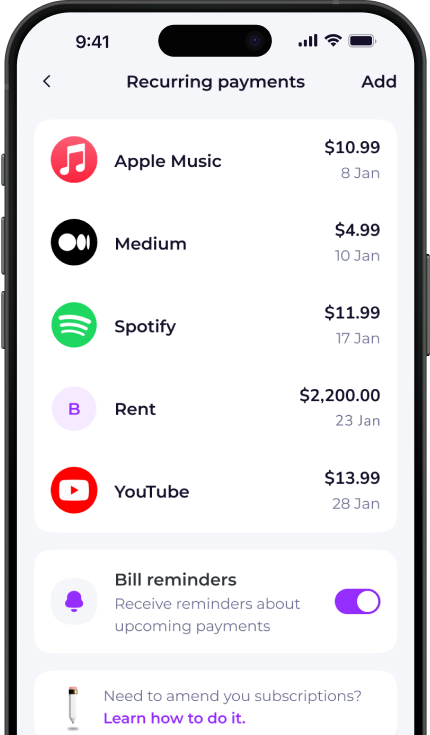
The Emma app finds and tracks all your recurring payments in one place. Over 3 million downloads.


How to cancel MailChimp
- Log in to your account.
- Click your profile name to expand the Account Panel, and tap Account.
- Click the Settings drop-down menu, and choose Pause or Delete account.
- Click the radio button next to Permanently delete this account, and then click Continue.
- Fill out the exit survey, then click Permanently Delete Account.
- On the Confirm Account Deletion pop-up modal, type DELETE in all caps.
- Click the Delete Your Account button to permanently close your MailChimp account.
To cancel online, go to http://kb.mailchimp.com/accounts/management/close-an-account

Want to get more clarity out of your bank accounts?
Download Emma to see all your money in one place and always know what you are paying for.


Whether you're looking for information on how to delete your MailChimp account, unsubscribe or cancel a free trial, Emma can help.
Check out the instructions above to cancel your MailChimp membership. You can also browse our directory for pages on how to cancel other popular subscription services.
Emma is a money management app that connects to all your bank accounts to help you track paid subscriptions and bank fees, set budgets payday to payday and categorise your expenses to identify areas for improvement in your finances.
Take back control of your money. Download Emma to build your credit, save more and spend less with the all-in-one financial membership.
MailChimp may show up on your statement as:
See all your recurring payments in the Emma app
How to redeem
Download the app
Get Emma for free
Connect all your bank accounts
It only takes a few clicks!
Click "see all" under recurring payments
The new page will open
View and edit details
You can see & edit payment history and predictions
Scan this QR code to download Emma.
Over 3 million downloads.


